What's it for?
I've written this tool to simplify the creation of guitar sheets that are easy to read and stylish. Using monospace fonts on one hand makes it easy to place the chords above the correct chars of the song line but looks clumsy and does need a good amount of horizontal space as every char has the same width no matter if it's a 'w' or 'i'. So this tool converts a kind of script language into a well formatted sheet.
The overall function
The sheet can generally be formatted by the options window in the upper left. Here you can adjust options like default size and colors.
The script can be types into the box on the bottom left. The converter understands two kinds of script:
- Inline: You use the lyrics and type the chords in brackets [...] before the chars they should stand above.
- Monospace: You have two lines for each song line; the upper with only chords and the lower with the sone line in such a way that each chord is placed above the char of the song line where it belongs. The Monospace script is converted into Inline script by the converter before the layout is created.
|
Inline
There [Am]is a [C]house in [D]New Or[F]leans That's [Am]called the [C]Rising [E]Sun[E7] |
Monospace
      Am   C        D     F
There is a house in New Orleans
       Am         C      E  E7
That's called the Rising Sun
|
There are also options you can insert into the script. They, too, are written in brackets [...] and always start with a backslash \. You can define text size, position, font, color and so on for any following text until another option overwrites it.
The options window
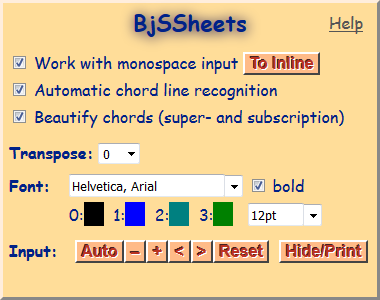
- Help: Opens this page.
- Work with monospace input:
If this option is activated, the input is converted from monospace to inline before it is parsed, so you can use both versions in one.
If the option is disabled, only inline formatted input is recognized. - To Inline: (only available if 'Work with monospace input' is on) Tries to convert the input text to inline format.
- To monospace: (only available if 'Work with monospace input' is off) Tries to convert the input text to monospace format.
- Automatic chord line recognition: (only available if 'Work with monospace input' is on)
Enables recognizing lines above song texts as chord lines if there are only plausable chords in it.
If this option is disabled, all chord lines must be prefixed with a dot or they will by recognized as text only. - Beautify chords: If this is enabled, recognized chords will be beautified by superscripting sus, maj, 7th and so on parts and subscripting bass notes:
Asus4C# instead of Asus4/C# - Transpose: Transposes all recognized chords on-the-fly by the set amount of half steps.
- Transpose source: (only available if 'Work with monospace input' is off) Transposes all regognized chords in the input text by the set amount of half steps and resets the steps to 0.
- Font: You can set the default font family, weight, colors and size.
- Auto: Alignes the widths of the options, input and output sections automatically by the browser width.
- - and +: Adjusts the input window's font size.
- < and >: Manually adjusts the options, input and output section widths.
- Reset: Resets the input text, the input text size and the section widths to their default values.
- Hide/Print: Switches the view to show only the guitar sheet so you can print it. To switch back to the editor view, press [Escape].
The inline options
You can set these options anywhere inside the text.
| Option | Description | ||
|---|---|---|---|
| \s{size}%; |
Defines the size of the following text in pt. If the % char is used the size is a fraction of the set size in the options area.
|
||
| \c{color}; |
Defines the color of the following text. You can define four different kindes of color:
1. Use the digit of a defined color in the options area.
2. Use a HTML color in #rrggbb or #rgb format. 3. Use a HTML color in rgb(r, g, b) format. 4. Use a HTML color by name (e.g. red).
|
||
| \b{color}; |
Defines the background color of the following text. See \c for more information about {color}.
|
||
| \al|r|c; |
Defines the horizontal align of the following text. Use l for left, r for right or c for center.
|
||
| \>{amount}; |
Defines the left indent of the this and the following rows in pixel. Always the last definition per line is used.
|
||
| \f{fontname}; |
Defines the font-family for the following text. You can use any installed font on your PC (if the browser supports it) or one of the pre-defined HTML font-families: monospace, sans-serif, serif, cursive, fantasy.
|
||
| \+="{style}"; |
Defines additional style definitions that should be added to each following line including the current one. Use this only, if you know about HTML styles.
|
||
| \x{top},{left}; |
Defines a textbox at the upper left (similar to the last example above).
{top} defines the distance from the top and {left} the distance from the left.
The background color is taken from the \b parameter. This overrides the \+= parameter!
|
You can reset any option to its default by leaving out the {option} part. This example resets all options:
|
[\s;\c;\a;\>;\f;\+="";\x]
|
Printing the sheet
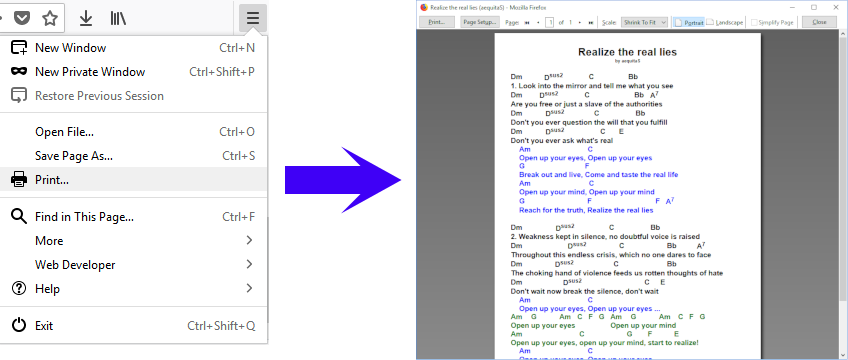
You can print the created sheet with the browser's print function. Only the right content will be visible on the printed output by stylesheet definitions. If your browser does not support this option, please use FireFox or Chrome instead - even Edge works.